Activate File License
SuperMap Online supports the generation of file licenses in *.licc format (supporting SuperMap GIS 10i and 11i series products) and *.LICx format (supporting only SuperMap GIS 11i series products). You can click "Order" in "Purchase" to enter the license activation page. License files in *.licc format (10i and 11i series products) and *.licx format (11i series products only) are applicable to single-machine, LAN, and VM environments. * License files in.licc format (10i, 11i series products are supported) are also more suitable for cloud environments, and it is recommended that you use this type when purchasing SuperMap iServer nuclear license/nuclear modules.
The.reportc/.report file generated through the License Center will determine whether the license is available. Please make sure that this file is generated from your computer to be activated. This article uses the Windows platform as an example to describe how to activate and generate liccand licx file licenses.
Activate and generate license files in *.licc format
-
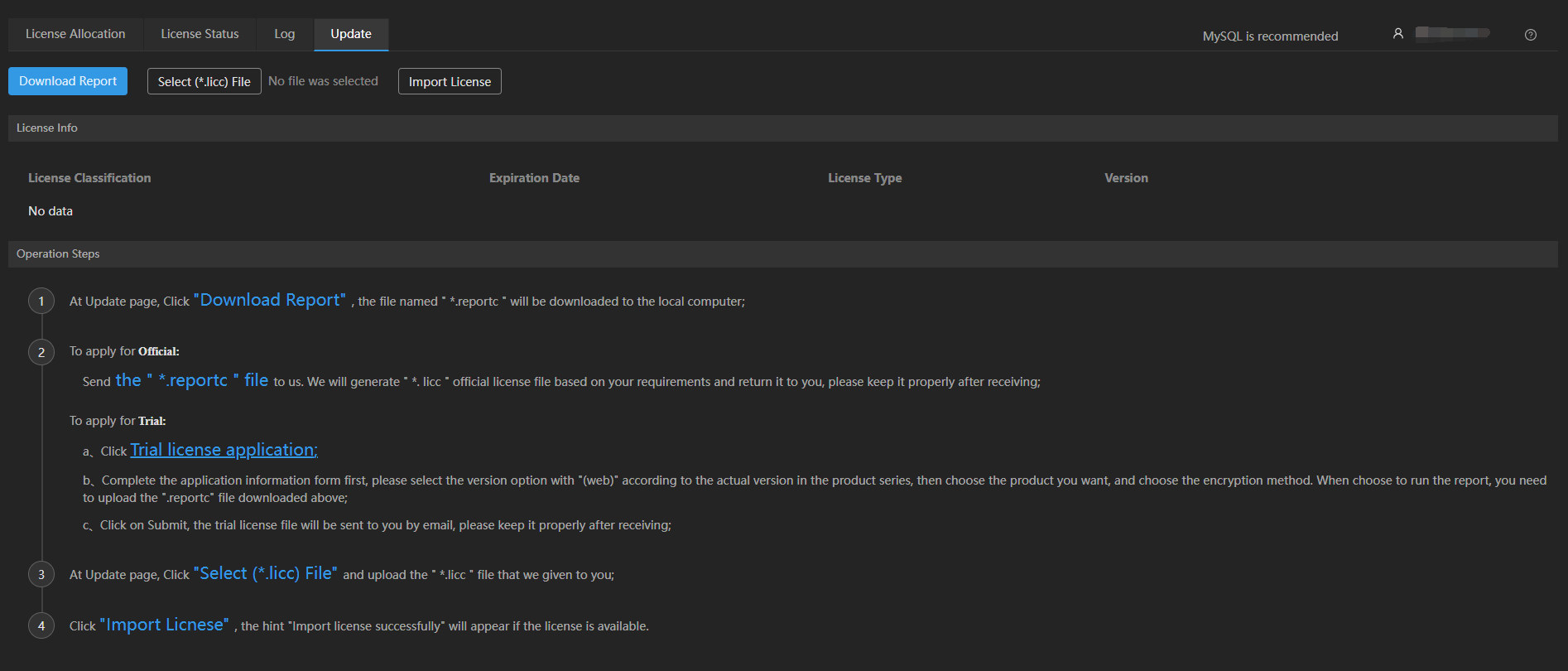
Click to download the SuperMap License Center (Web version), run the start.bat file in the bin directory, and wait for the startup to complete. Open the browser to http://localhost:9183, register an administrator account, log in, go to the Activation and update page, and click "Download Report" to save the *.reportc file.
-
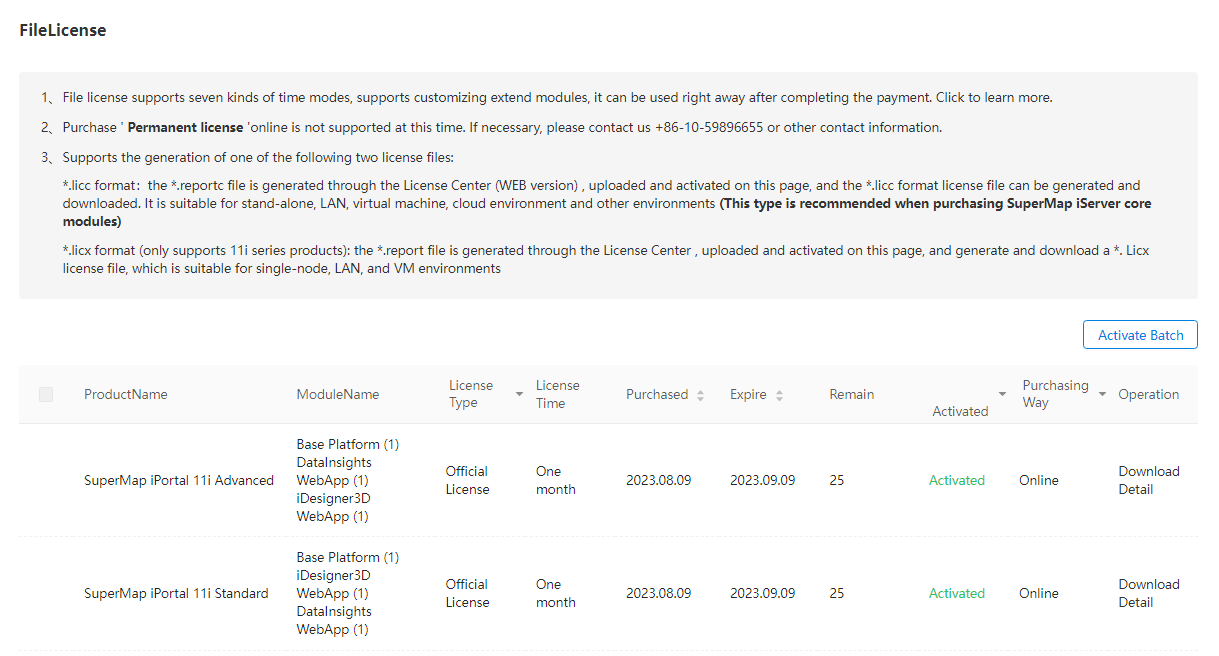
In SuperMap Online, go to Personal Board - License- FileLicense, select and upload the *.reportc file you generated in the previous step, and click the "Activate" button.
-
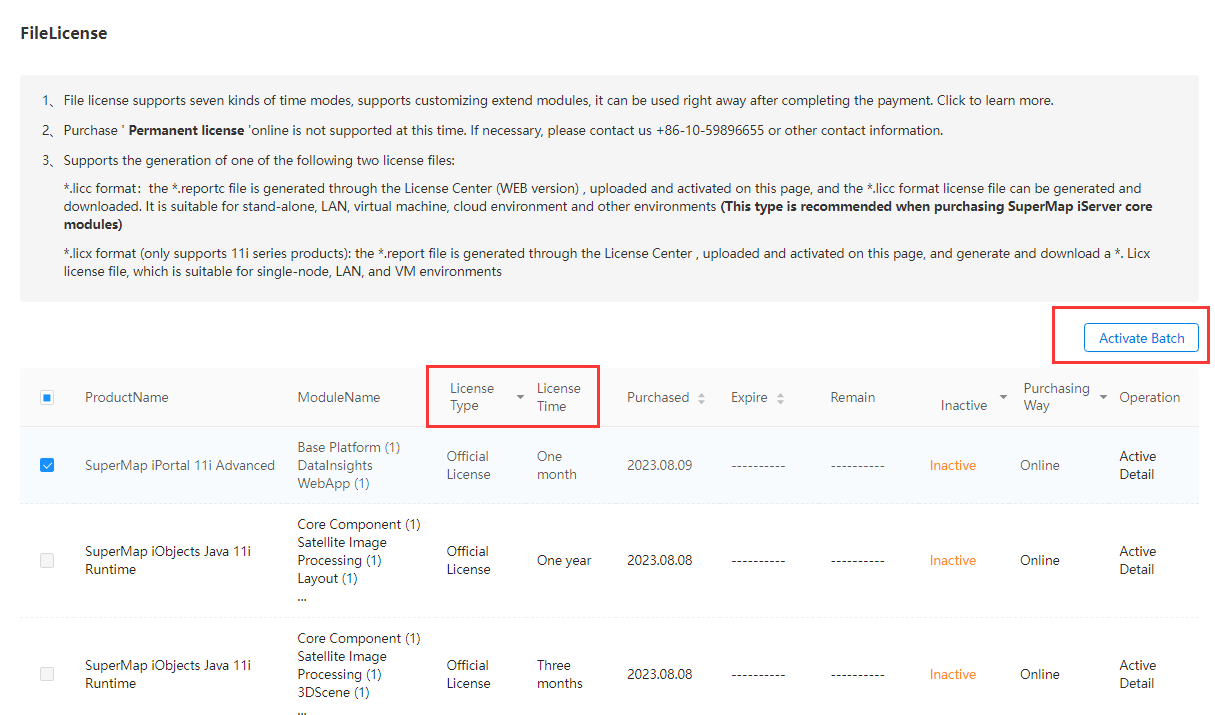
You can select products with the same license type and license time for batch activation. Select the product you want to activate, click the batch activation button, upload the generated *.reportc file, and click the "Activate" button.
-
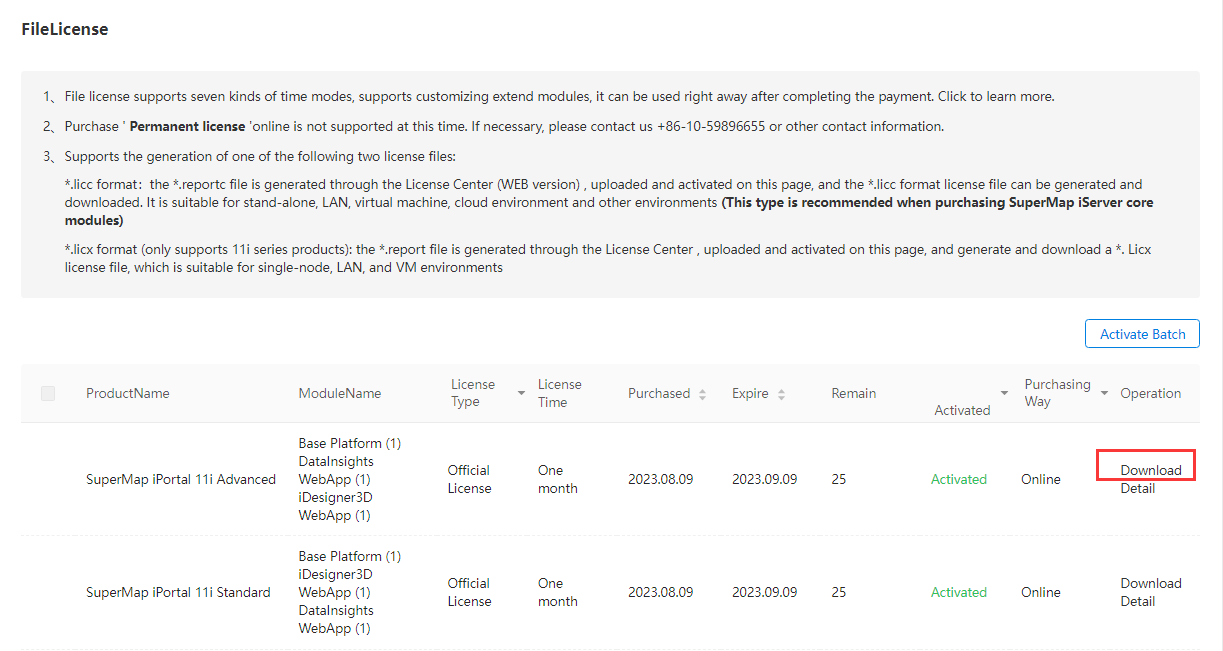
Click "Download" to get your activated license file (*.licc).
-
After obtaining the activated file, activate the update in the license center (Web version) (Note: iManager product comes with the license center, and does not need to be configured in advance).
-
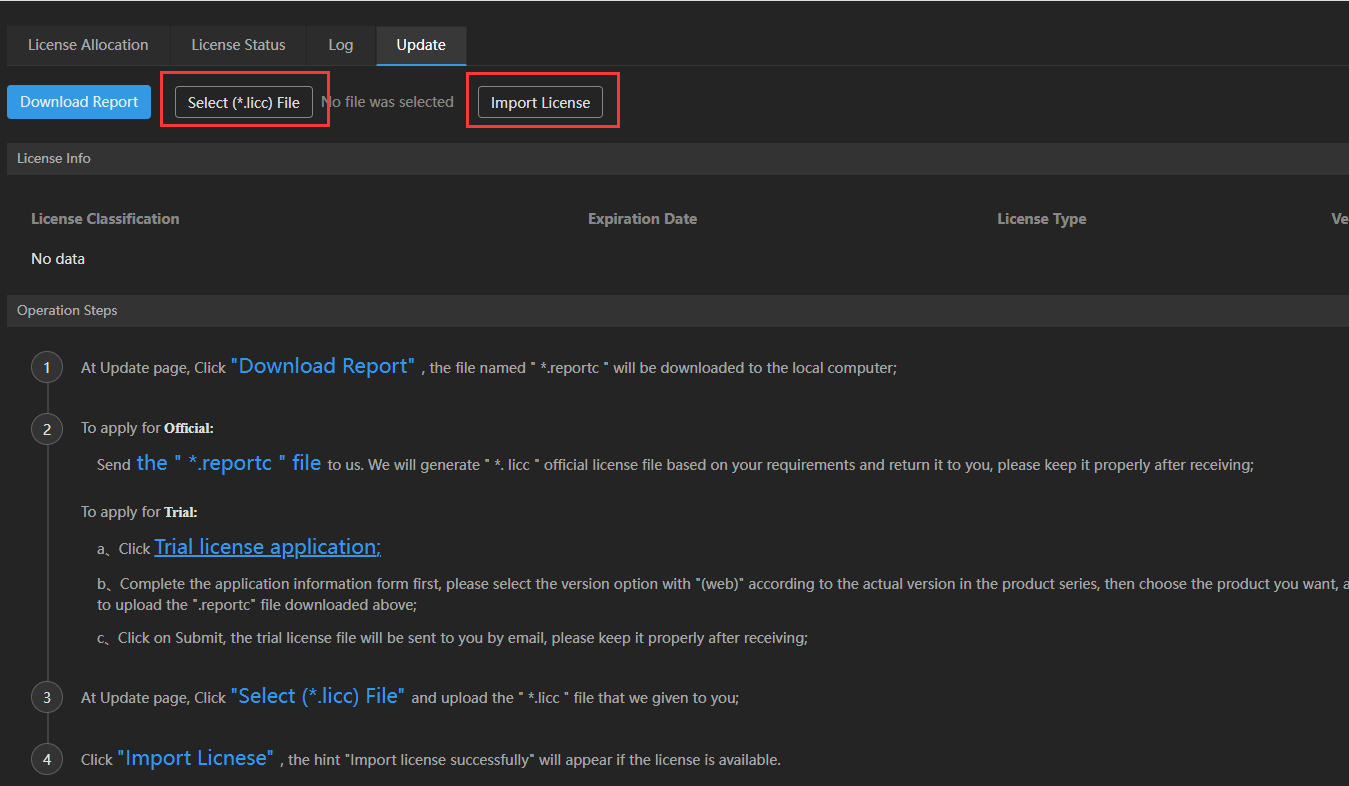
Go to http://localhost:9183 and sign in to your account. Select "Update" and click "Select (*.licc) file" to upload the *.licc file you obtained. Click "Import License" to activate the file license and use it.
-
After activation is complete, the file license in *.licc format can be used in the products.
Activate and generate license files in *.licx format
-
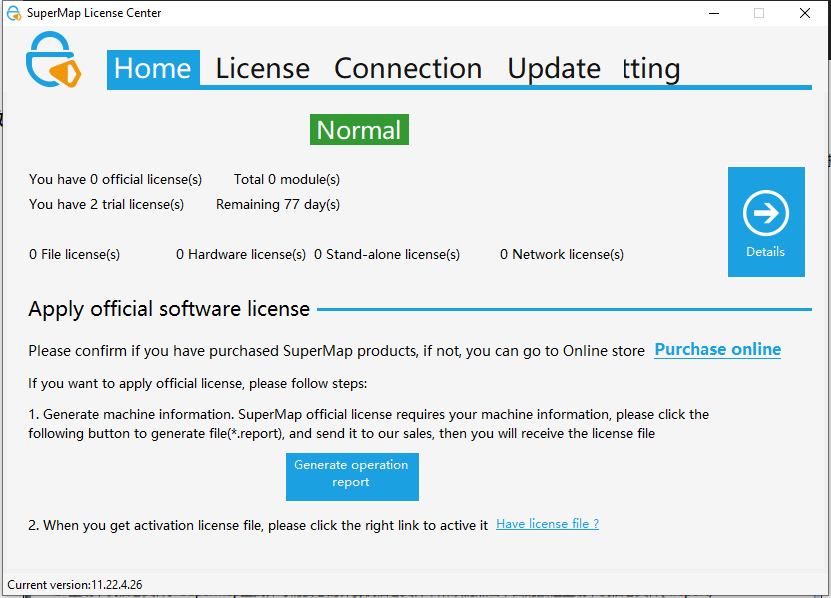
Click to download SuperMap LicenseCenter, click and run supermap.licensecenter (for.NET 4.0).exe, open license center, click "Generate operation report" button, save the generated *.report file.
-
In SuperMap Online, go to Personal Board - License- FileLicense, select and upload the *.report file you generated in the previous step, and click the "Activate" button.
-
You can select products with the same license type and license time for batch activation. Select the product you want to activate, click the batch activation button, upload the generated *.reportc file, and click the "Activate" button.
-
Click "Download" to get your activated license file (*.licx).
-
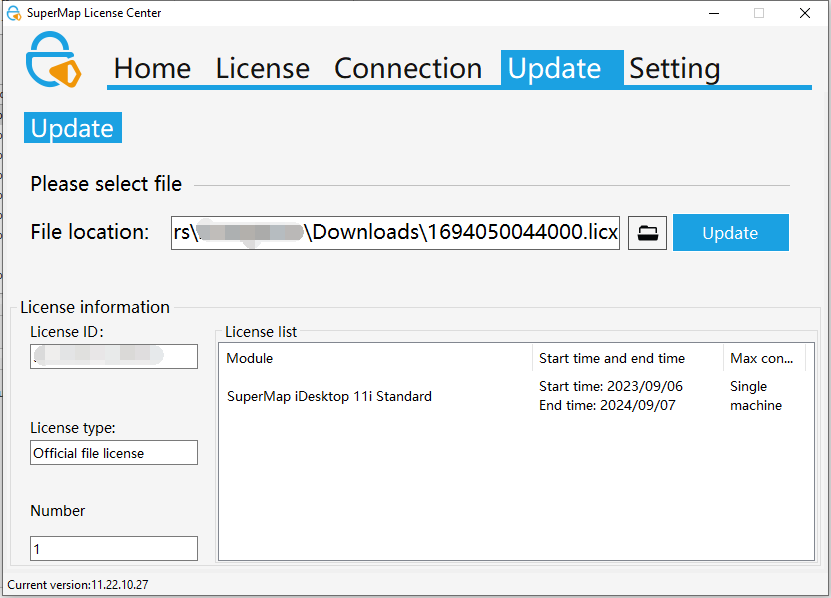
Open the license center, click "Update", upload your license file (*.licx) to complete the activation.
-
After activation is complete, you can use the.licx file license in the product.