File License to Use *.licc Format in Products
This paper introduces the methods of using *.licc format file license for a variety of SuperMap GIS software products, including:
Note: *.LICc file license supports the use of SuperMap GIS 10i and 11i series products. For other cloud GIS platform software products such as SuperMap iPortal, the SuperMap iEdge profile license method is the same as that of SueprMap iServer.
Use file permissions in SuperMap iServer
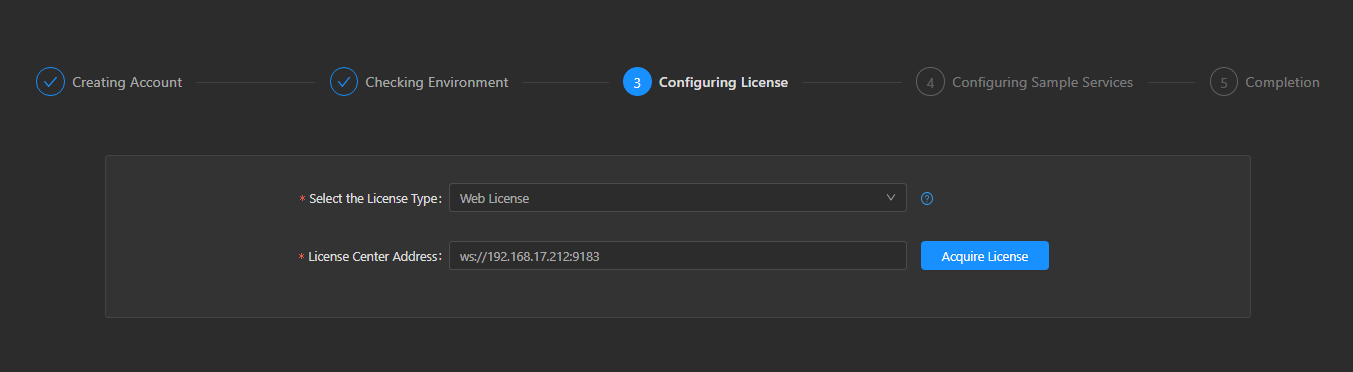
- Access the home page of your deployed SuperMap iServer (http://{ip}:{port}/iserver), click click "Creating Account" and"Checking Environment", and the "Configuring License" page is automatically displayed.
- SuperMap iServer will automatically identify the license for you, and when there is no license on the machine, the cloud license, Educational license, and Web license options will be displayed in the "Configuring License" step. Select the license type as Web License and enter the license center address, for example, 'ws://192.168.17.212:9183' and click "Acquire License" to display the available licenses detected from the license Center.
-
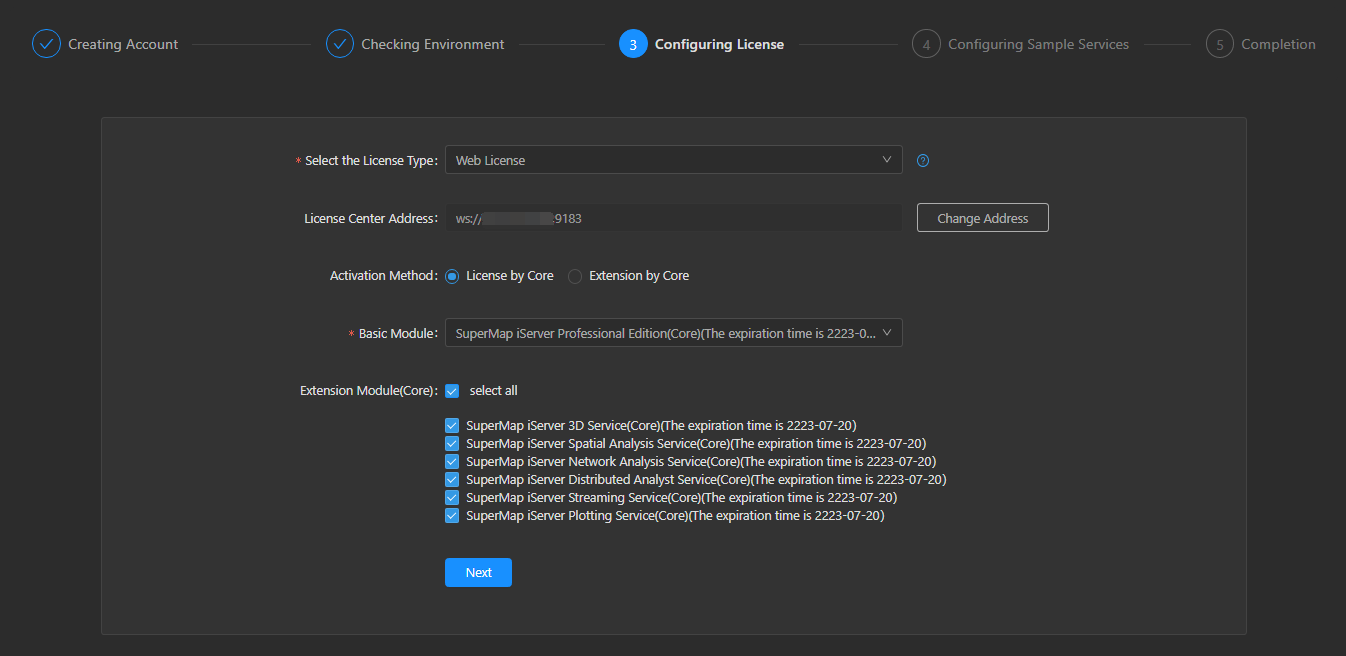
You can see the specific information of the license. For example, if you have purchased the core license, select "License by Core" in the enabling mode, click "Next" button after completing the selection to jump to "Configuring Sample Services", and select the language you want to use, you can start to access and use SuperMap iServer.
Use file permissions in SuperMap iDesktop
-
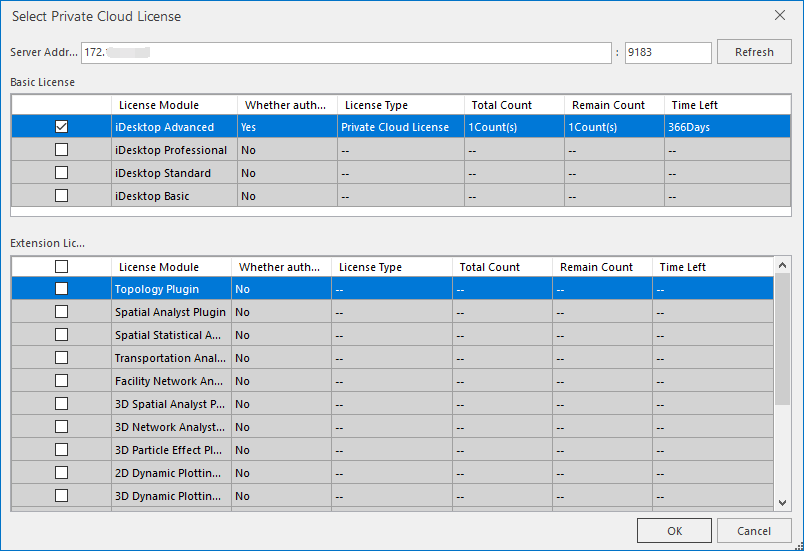
Start the SuperMap Desktop.exe Desktop. The Licensing dialog box is displayed. Click “Use Private Cloud License”.
-
Enter the address of the private cloud license server on the LAN. The default port number is 9183. Click the "Refresh" button, connect to the license server, and start using.
Use file permissions in SuperMap iManager
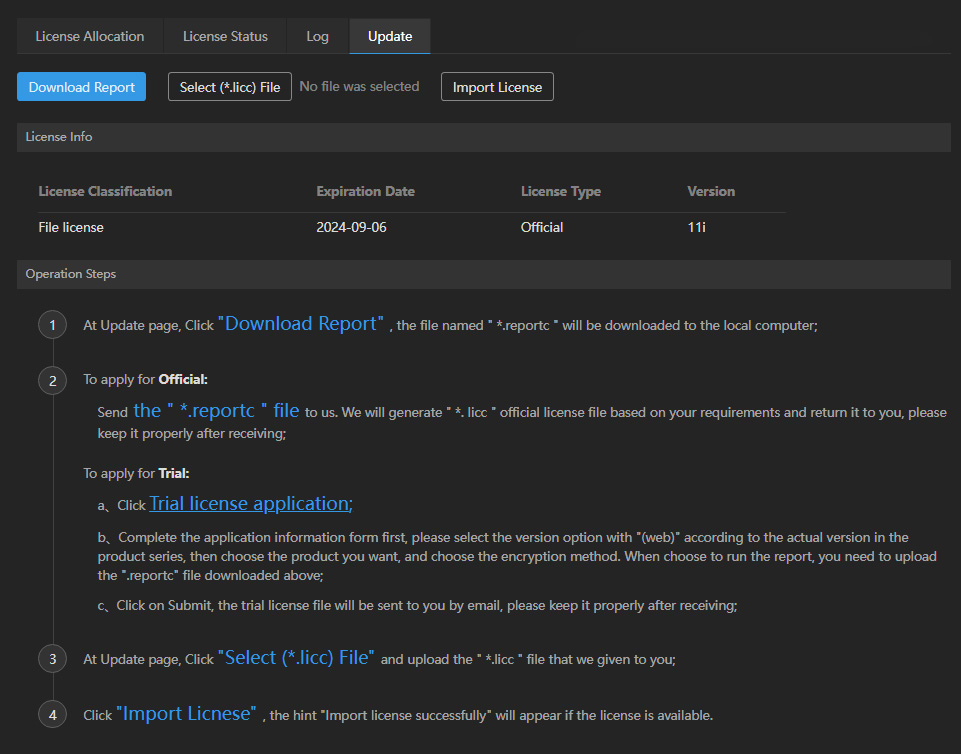
- SuperMap iManager comes with a license center. You need to deploy SuperMap iManager first, then log in to the main page of iManager, click "License Center" in the lower left corner of the navigation bar, and activate the license file to start using it.
Use file permissions in SuperMap iObjects Java
- The following code demonstrates some operations on the license, such as verifying that the license is available, returning some license information, and so on.
/**
     * The following code demonstrates how to log in and log out of an enterprise license.
     */
    public static void main(String[] args) {
        int[] loginFeatures = new int[] { 10002, 10003 };
        // Registered enterprise license
        BSLicense.login("192.168.17.32", 9183, loginFeatures);
        // Connect to the license module in the enterprise license to verify that the enterprise license was obtained successfully, and return 0 on success.
        License lic = new License();
        int code = lic.connect(10002);
        System.out.println("code = " + code);
        // Logout enterprise license
        BSLicense.logout();
        // Connect to the license module again to verify that the enterprise license is invalid, and the return value should be a non-zero value.
        code = lic.connect(10002);
        System.out.println("code = " + code);
        System.out.println("end");
    }